


Port Security configuration on Cisco switches
Generally, it’s not a good idea to have switches available for anyone to simply plug into and play around with. I mean, we care about wireless security, so why wouldn’t we demand the same level of security—or even higher—on wired networks? But how do we prevent someone from simply plugging a host into one of our switch ports, or even worse, adding a hub, switch, or access point to the Ethernet port in their office? By default, MAC addresses will dynamically appear in your MAC forwarding/filtering database, and you can stop them in their tracks using port security. Figure 1 shows two hosts connected to the single switch port Fa0/3 via a hub or access point (AP).
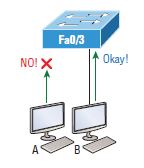
Port Fa0/3 is configured to monitor and allow only certain MAC addresses to associate with the specific port, so in this example, Host A is denied access, but Host B is allowed to associate with the port. By using port security, you can limit the number of MAC addresses that can be dynamically assigned to a port, configure static MAC addresses, and—here’s my favorite part—set penalties for users who violate your policy! Personally, I like to have the port shut down when security policy is violated. Having the abusers bring me a memo from their boss explaining why violating the security policy carries a certain poetic justice is nice. And I also need something like that before re-enabling their port. Things like this really seem to help people remember to behave. All of this is fine, but you still need to balance your specific security needs with the time it will actually take to implement and manage them. If you have tons of time on your hands, then go ahead and lock down your network seriously. If you’re as busy as the rest of us, I’m here to assure you that there are ways to secure things very well without being completely overwhelmed by a huge amount of administrative paperwork. First and foremost, and without overcomplicating things, always remember to close unused ports or assign them to an unused VLAN. All ports are enabled by default, so you must ensure that there is no access to unused switch ports. These are your options for configuring port security:
Switch#config t
Switch(config)#int f0/1
Switch(config-if)#switchport mode access
Switch(config-if)#switchport port-security
Switch(config-if)#switchport port-security ?
aging Port-security aging commands
mac-address Secure mac address
maximum Max secure addresses
violation Security violation mode
<cr>
Most Cisco switches ship with their ports in desirable mode, which means those ports will attempt to form a trunk when they detect that another switch has just been connected. So, first, we need to change the port from desirable mode and turn it into an access port. If we don’t do that, we won’t be able to configure port security at all. Once that’s out of the way, we can continue using our port security commands, never forgetting that we must enable port security on the interface. Note that I did this after making the port an access port. The previous result clearly illustrates that the command switchport port-security it can be used with four options. You can use switchport port-security mac-address mac-address to assign individual MAC addresses to each switch port, but be warned: if you choose that option, you’d better have plenty of time on your hands. If you want to configure a switch port to allow only one host per port and ensure that the port will be shut down if this rule is violated, use the following commands like this:
Switch(config-if)#switchport port-security maximum 1
Switch(config-if)#switchport port-security violation shutdown
These commands are probably the most popular because they prevent random attacks in which users connect to a specific switch or access point in their office. The maximum setting is 1, which is the default port security value that is immediately applied to a port when it is enabled. Sounds good, but the drawback is that it only allows a single MAC address to be used on the port, so if anyone—including you—tries to add another host to that segment, the switch port will be shut down immediately. And when that happens, you have to manually log into the switch and re-enable the port with a shutdown and then a command of no shutdown. Probably one of my favorite commands is the command sticky and not only because it has a cool name, but also because it makes very interesting things happen. You can find this command in the command mac-address:
Switch(config-if)#switchport port-security mac-address sticky
Switch(config-if)#switchport port-security maximum 2
Switch(config-if)#switchport port-security violation shutdown
Basically, with the command sticky you can provide static MAC address security without having to enter the MAC address of absolutely everyone on the network. I like things that save time like that. In the previous example, the first two MAC addresses that enter the port are “stuck” to it as static addresses and will be placed in the running configuration, but when a third address tries to connect, the port will shut down immediately. Let me show you another example. Figure 2 shows a host in a company lobby that must be secured against the Ethernet cable being used by anyone other than a single authorized individual.
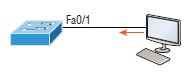
What can you do to ensure that only the lobby PC’s MAC address is allowed on switch port Fa0/1? The solution is quite simple because in this case the default port security settings will work fine. All that’s left for me to do is add a static MAC address entry:
Switch(config-if)#switchport port-security
Switch(config-if)#switchport port-security violation restrict
Switch(config-if)#switchport port-security mac-address aa.bb.cc.dd.ee.ff
To protect the lobby PC, we would set the maximum number of allowed MAC addresses to 1 and configure the violation action to “restrict” so that the port doesn’t shut down each time someone tries to use the Ethernet cable (which would be happening constantly). By using the violation restriction, frames from the unauthorized user would simply be dropped. But did you notice that I enabled port security and then set a static MAC address? Remember that as soon as you enable port security on a port, the default is shutdown on violation and a maximum of 1. So all I needed to do was change the violation mode and add the static MAC address, and our business requirements are solidly met.